Table of Contents
No More Downloads: Edit Password-Protected Office Files Directly in Google Drive
If you work with Microsoft Office files in Google Workspace, you’ve probably run into this roadblock: you receive a password-protected Excel or Word file, but you can’t open it in Google Drive.
Until now, you had to download the file, open it in a desktop app, remove the password, and re-upload it just to make a quick change.
That changes today. Google has just announced a major update to make working with Microsoft Office files easier than ever. You can now open, view, and edit password-protected Office files directly within Google Docs, Sheets, and Slides.
How it Works
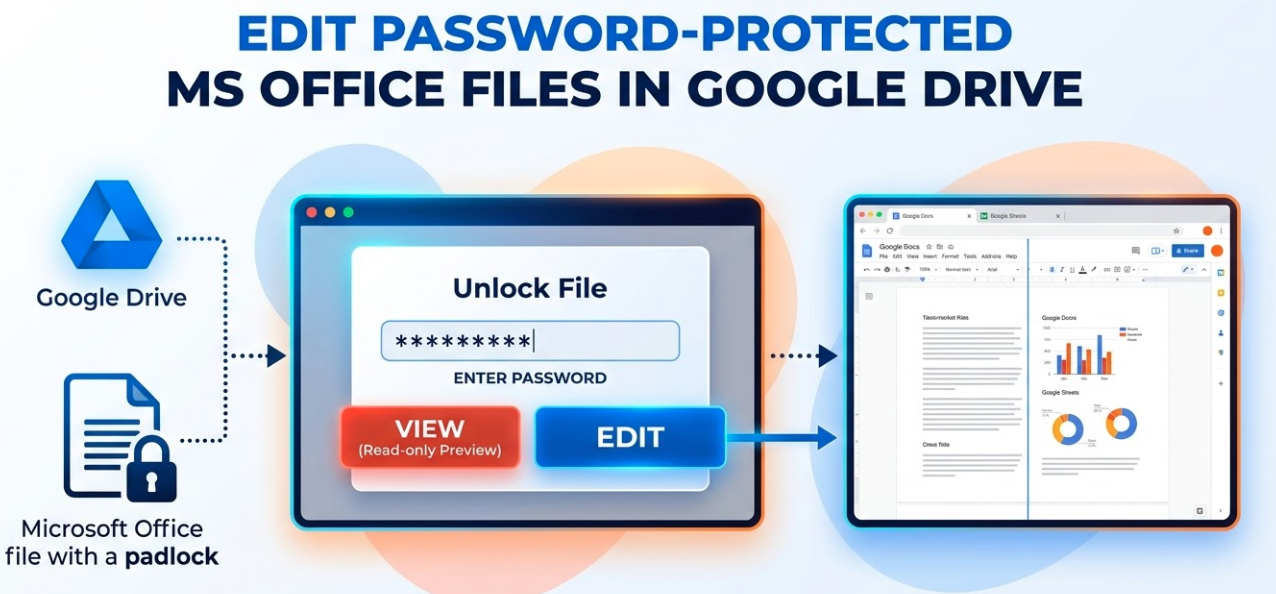
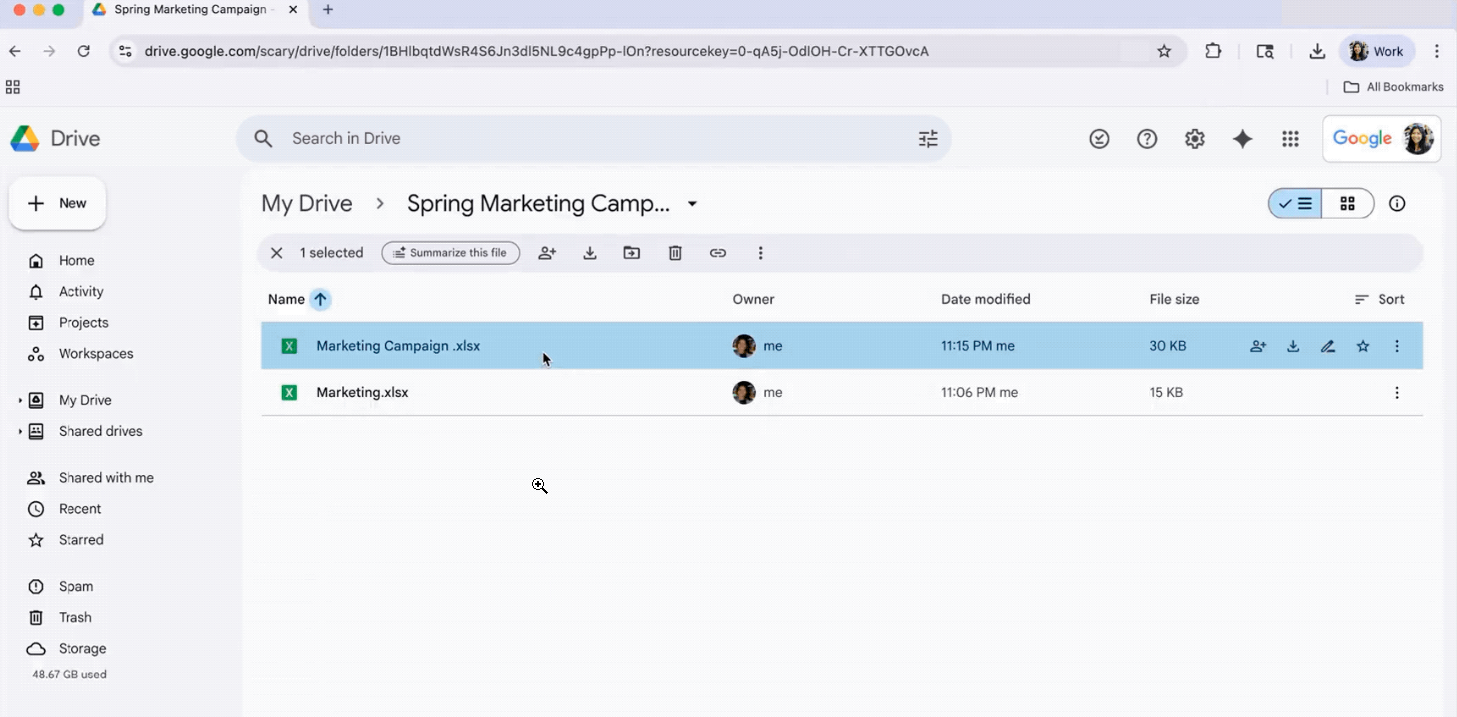
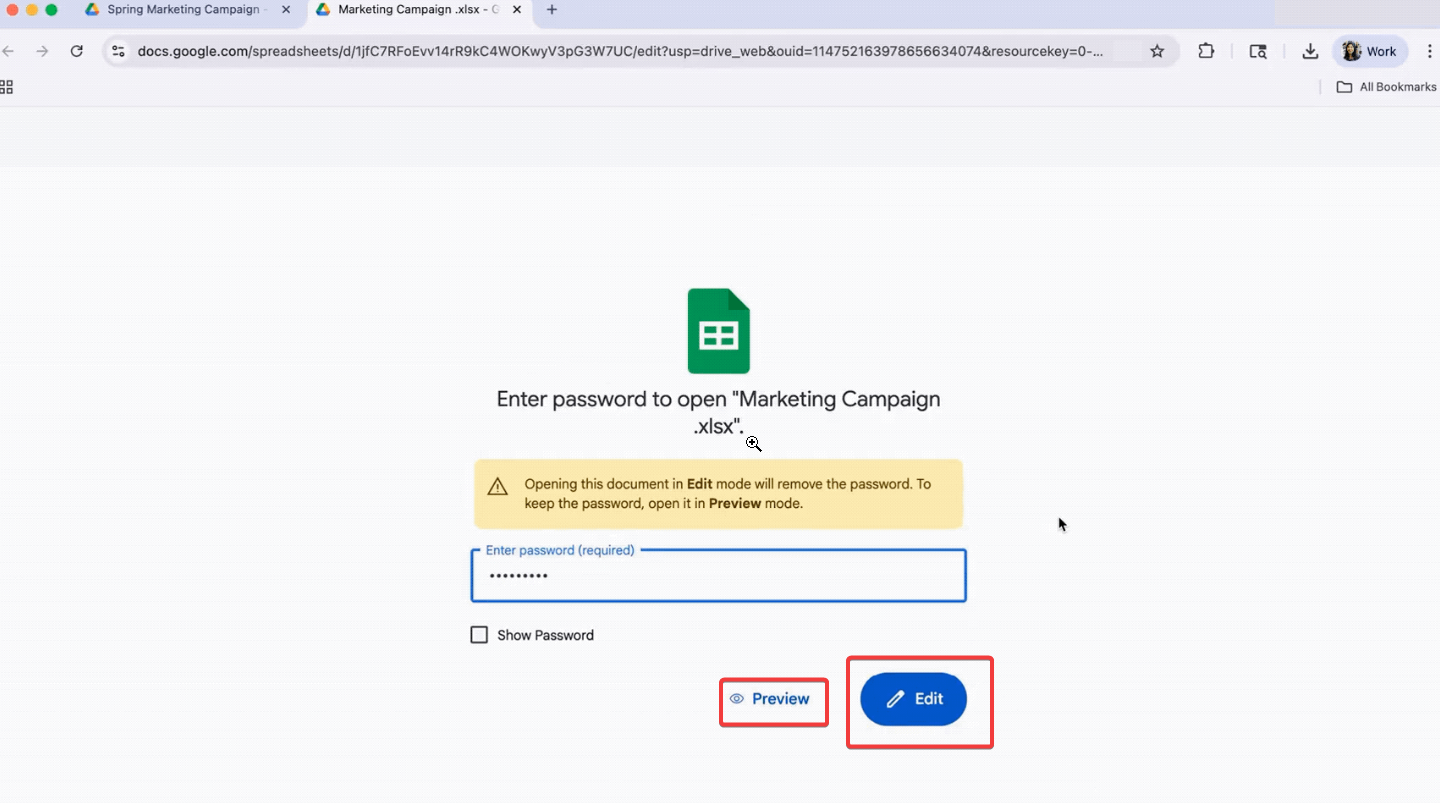
When you open a protected Microsoft Office file (like .docx, .xlsx, or .pptx) in Google Drive, you will see a new prompt asking for the password. Once you enter it, you’ll have two choices:
-
View (Preview Mode): This allows you to read the document in a “read-only” mode. The password protection remains on the file, and no changes can be made.
-
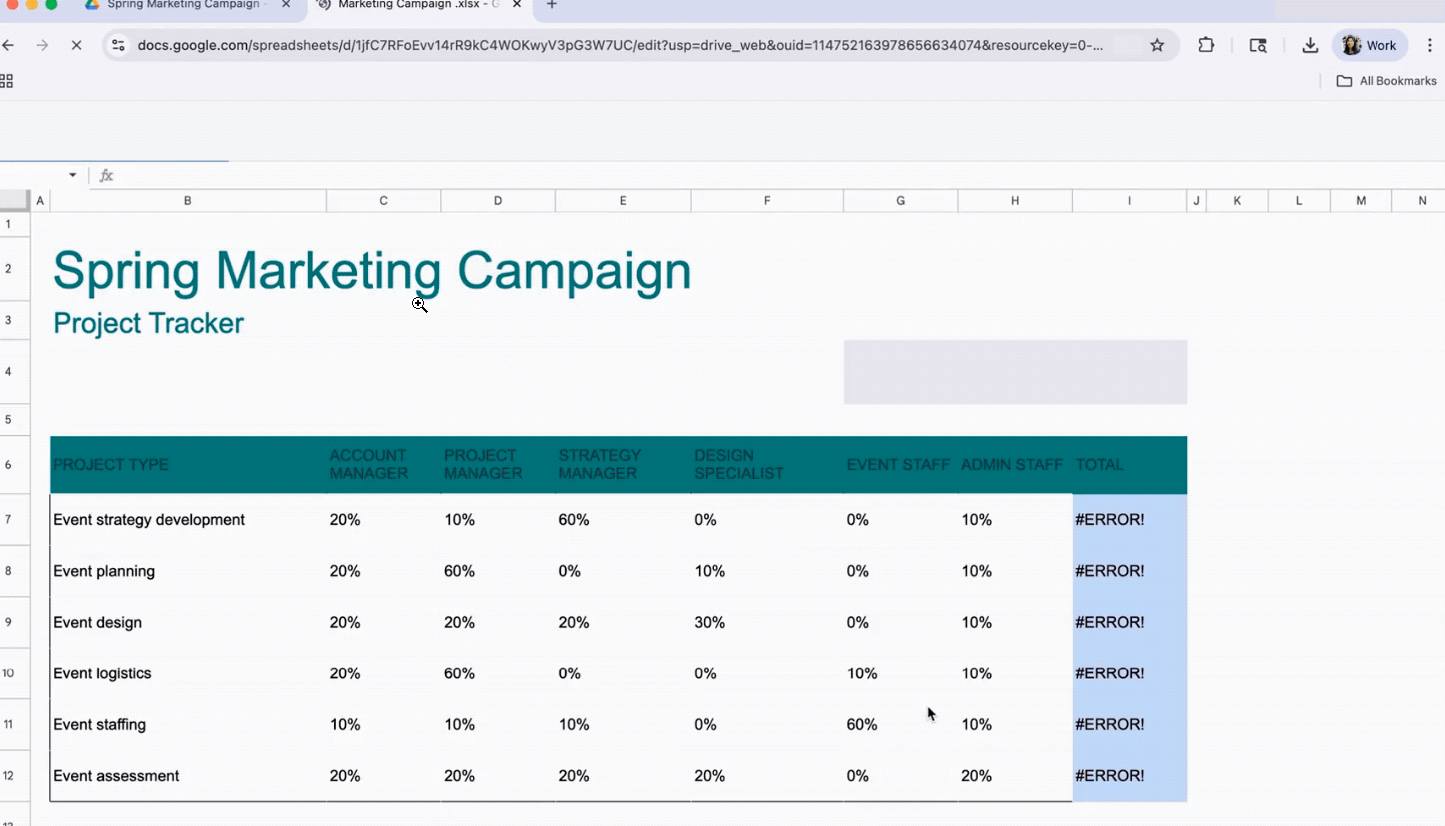
Edit (New!): This is the game-changer. By selecting “Edit,” the file opens directly in Google Docs, Sheets, or Slides.
-
Note: Choosing “Edit” will remove the password from the file so you can collaborate and save changes seamlessly in the cloud.
-
Why This Matters for Your Business
-
Save Time: No more downloading and re-uploading files just to bypass a password.
-
Simplified Workflow: Handle everything within your browser without needing third-party software or expensive desktop licenses.
-
Better Collaboration: Once you unlock the file for editing, you can immediately tag teammates, leave comments, and work together in real-time.
Support for eMail
supportmail@deepit.com
+91 99 789 369 78
Support for Web
supportweb@deepit.com
+91 99 789 369 56