Google has rolled out a new security update for Google Chat that helps users avoid spam, unwanted messages, and unknown contacts.
If you’re a business owner using Google Workspace Starter, this update gives you better control over who can reach you on Google Chat — especially useful for small teams that receive too many unsolicited messages.
What’s New?
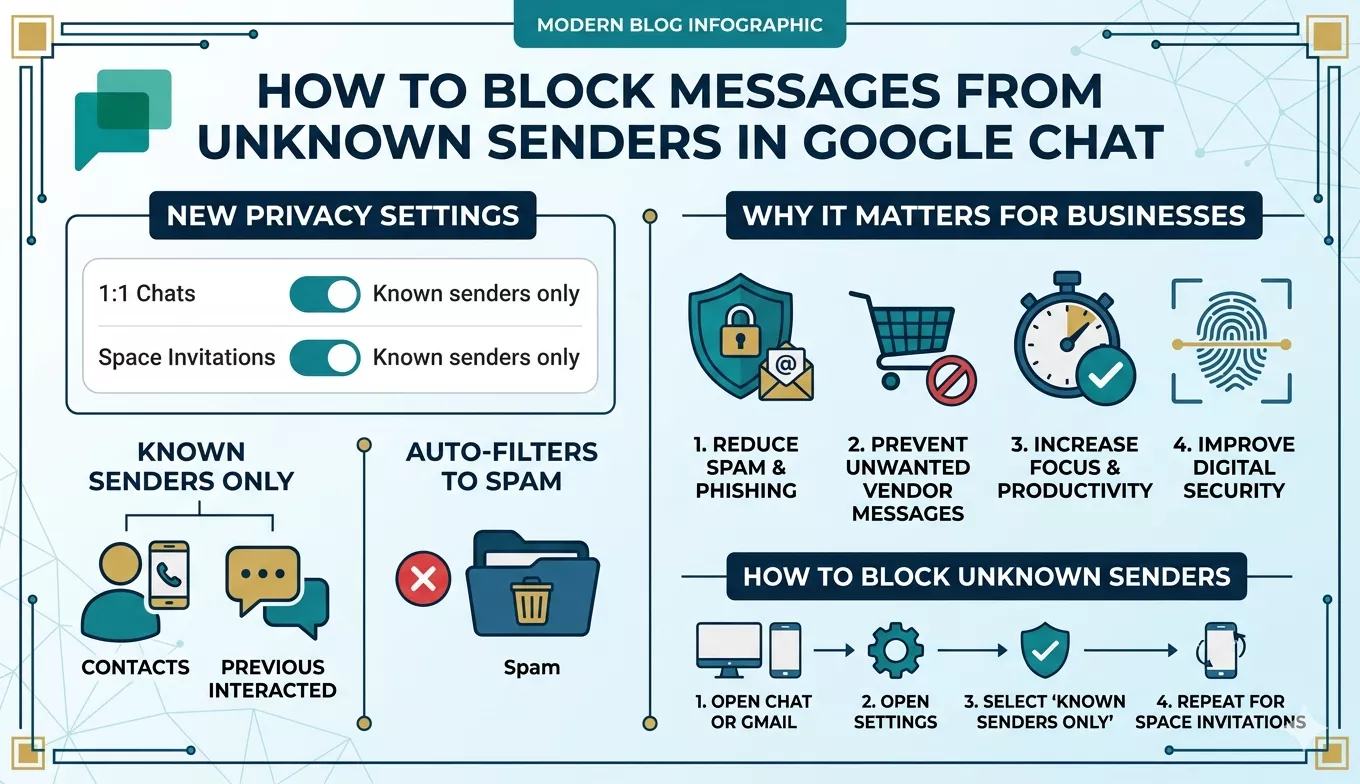
Google Chat now offers two new privacy settings:
- Who can message you in 1:1 chats
- Who can invite you to spaces
You can now choose to receive messages from:
- Anyone (default), or
- Known senders only
If you choose Known senders only, Google Chat will allow messages only from:
- People already in your Contacts
- People you have previously interacted with
All other requests automatically go to Spam.
Why This Update Matters for Businesses
This update helps:
- Reduce spam & phishing attempts
- Prevent unwanted vendor/sales messages
- Increase focus and productivity
- Improve digital security for your organization
For smaller companies using Google Workspace Starter, this adds an important security layer without needing admin controls or upgrades.
How to Block Unknown Senders in Google Chat
Follow these steps on your computer:
Step‑1: Open Google Chat or Gmail
- If using Gmail → click Chat on the left sidebar.
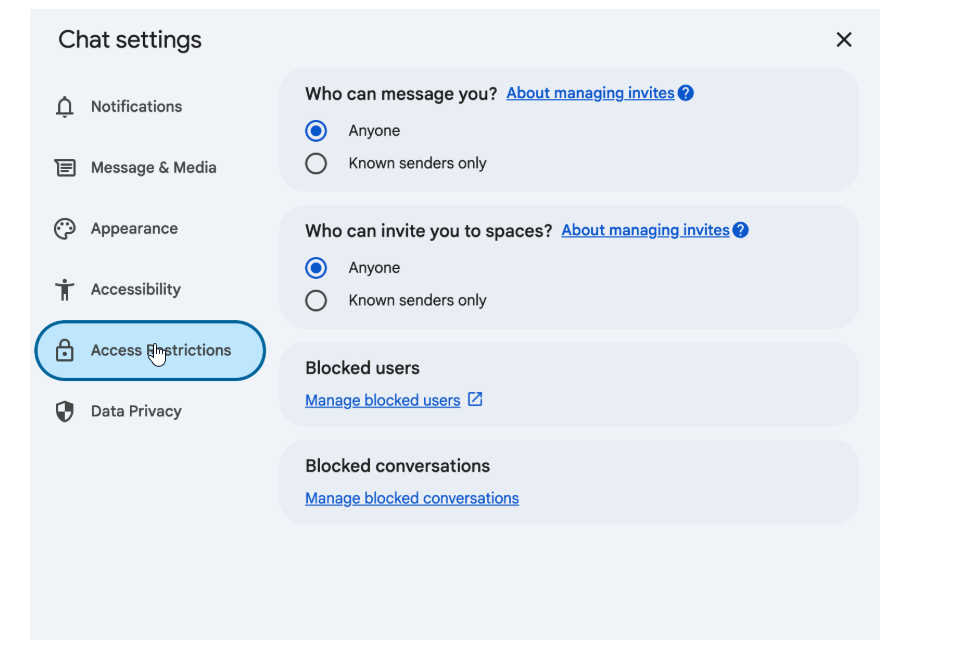
Step‑2: Open Chat Settings
- Click
 Settings on the top right.
Step‑3: Change Message Restrictions
Under Who can message you? Choose:
- Anyone, or
- Known senders only (recommended for security)
Step‑4: Control Space Invitations
Under Who can invite you to spaces? Choose:
- Anyone, or
- Known senders only
That’s it! Unknown users are now automatically filtered to spam.
Important Notes
- This setting doesn’t affect internal messages inside your organization.
(Example: your teammates can always message you.)
Blog Creation Date 16 March 2026
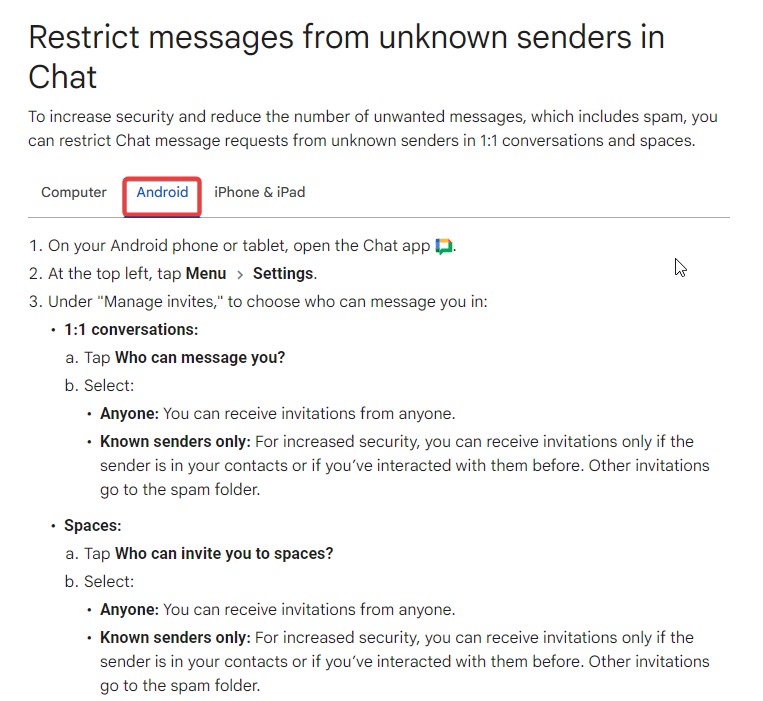
📱 How to Restrict Unknown Senders in Google Chat (Android)
Steps:
- On your Android phone or tablet, open the Google Chat app.
- At the top left, tap Menu → Settings.
- Under “Manage invites”, choose who can message you in:
1:1 Conversations
- Tap Who can message you?
- Select: AnyoneYou can receive invitations from anyone. Known senders only (Recommended)You can receive invitations only if the sender is:
- In your contacts, or
- Someone you’ve interacted with beforeAll other messages go to Spam.
Spaces
- Tap Who can invite you to spaces?
- Select: AnyoneYou can receive space invitations from anyone. Known senders onlyInvitations are allowed only from contacts or previously interacted users.Other invitations go to Spam.
🍏How to Restrict Unknown Senders in Google Chat (iPhone & iPad)
Steps:
- On your iPhone or iPad, open the Google Chat app.
- At the top left, tap Menu → Settings → Manage invites.
- Choose who can message you in:
1:1 Conversations
Under Who can message you?, select:
- AnyoneReceive invitations from anyone.
- Known senders onlyOnly contacts or people you have interacted with can message you.Others go to Spam.
Spaces
Under Who can invite you to spaces?, select:
- Anyone
- Known senders only (for increased protection)